Institute of the computational modeling SB RAN
ADM–3D
The software for the solution of the forward and inverse three-dimensional and two-dimensional problems of magnetometry
Krasnoyarsk 2003
Importing
data from grid file12
General info
ADGM3D v1.0 developed with
Borland Delphi.
Model type: block-layered
Unlimited number of layers and
blocks in the layer.
Data: DTa or DZa magnetic field
anomalies uniformly scattered on the surface of observation.
Unlimited number of the
surfaces of observation[1].
Packet is intended for the
solution of the forward and inverse three-dimensional and two-dimensional
problems of magnetometry based on the data of the anomalous magnetic field,
measured in the knots of uniform grid on the assigned surfaces of observation.
Algorithm
Three-dimensional block-layered model of medium with the
piecewise-linear layer boundaries is assumed for the purposes of solution. Each
layer is approximated by the set of parallelepiped elements (blocks). Along the
axes X and Y the partition into the blocks is conducted according to the preset
rectangular grid, while the vertical dimensions of blocks are determined by the
positions of layer boundaries. Inside
of the elementary block the magnetic susceptibility of medium assumed constant.
We consider the following
problems:
a) For each elementary
block, value of the magnetic susceptibility is given. All boundaries are known.
Determine the values of DTa or DZa along the required
surfaces, which can coincide or not with the original ground.
b) The values of DTa or DZa are given. All
boundaries are known. Determine the magnetic susceptibilities for each block.
c) The values of DTa or DZa are given and for each
elementary block, value of the magnetic susceptibility is given. Also, the
upper and bottom boundaries are known. Determine the inner layer boundary
positions.
It is customary in geophysics
to call the problems subsequently forward
problem, inverse problem
and contact problem. Adding up
magnetic influences from each elementary block solves the forward problem. The
field of elementary block calculated from known formulae [1,2]. The inverse
problem is reduced to solving a linear equation system, and the contact problem
is described by non-linear equation system, where coefficients are dependent
of the layer boundary coordinates. Both
systems are solved by adaptive method of solving the systems of algebraic (linear and nonlinear) equations. The coefficients
of system in contact problem are refined after each iteration.
The adaptive method being used
has the following features:
- it uses the initial approximations of unknown
susceptibilities (or boundaries);
- takes into account their a prioi possible errors
(APE). Changing APE influences resultant parameter values. Enlarging APE
results in broader range for parameter value searching and vise versa.
Zeroing APE will fix parameter value in place;
- doesn’t accumulate errors, which allows for a
solution of the systems with a large quantity of equations and unknowns;
- allows finding solution that is the closest to a
priori set one in the case when the problem has multiple solutions.
The solution of inverse
problem gives a block model with completely determined susceptibilities,
boundaries and modeled field. After
that, we can solve additional problem of finding layer-homogeneous model with
double number of layers. Each layer will be divided onto two sub-layers, assuming
that susceptibilities are constant within those sub-layers. The upper sub-layer
will be assigned minimal value from all the blocks making up the layer and the
bottom sub-layer will receive maximal. Then, a new boundary position will be
calculated so that summated magnetic moment from both blocks equaled that from
old block. It is also possible to manually choose susceptibilities of
sub-layers and boundary position. That new model can later be used as an
initial approximation for the contact problem. Finally, anomalous gravity field
Dg will be calculated.
Input data
The input data contain
information about model geometry, physical properties of medium, computation
variants and conditions and also some text information about researched field
and well logs. Each piece of data has a designation., which are used in table
descriptions and help system.
Two main types of input data
are scalars and arrays.
Scalars
This type of parameter
represents a simple scalar value.
Tasks. This parameter can
assume four values:
- None, which means that no task is selected
- Forward – forward problem will be solved
- Inverse – first, inverse problem will be solved,
then, according to obtained susceptibilities values, model magnetic field
will be computed
- Contact – you guessed it, contact problem will be
solved, then, according to obtained boundary positions, model magnetic
field will be computed
As you can see, forward
problem will always be solved after inverse problem. If you set Iterations at
0, inverse problem solution will be skipped. It is a convenience feature, intended
for use with manual inverse problem solution. According to this method, you do
not compute model parameters, but change them manually. Of course, this method
can reasonably be used only for very simple task.
Number of…
- Layers – number of layers in model. Unlimited. It
is recommended, though, do not exceed 20 layers per model.
- Profiles – number of elementary blocks along X
axis (unlimited)
- Points in profile – number of elementary blocks
along Y axis (unlimited)
- Iterations – number of iterations for solution of
inverse or contact problem
- Curves – number of survey levels. Unlimited, but
more than 10 is probably not very effective
Model parameters
- Distance between points – survey data grid step
along Y-axis, meters
- Distance between profiles – survey data grid step
along X-axis, meters
Above parameters are
determining the dimensions of elementary blocks.
- Inner radius, outer
radius (meters). Solving problems with high number of layers and blocks
can be time-consuming. We can accelerate the solution, if for each
observation point will ignore all blocks situated further than “inner
radius”. “Outer radius” controls the area for blocks participating in
divider computation. Outer radius must be greater then inner radius. If
both radiuses are greater then maximal diagonal size of the research area,
computations will be precise. Forward problem always computed exactly. It
is better to keep inner radius close to actual distance between
observation points.
- X normal component – the strength of background
magnetic field along X-axis, Oe.
- Y normal component – the strength of background
magnetic field along Y-axis, Oe.
- Z normal component – the strength of background
magnetic field along Z-axis, Oe. These parameters characterize the normal
Earth magnetic field strength at the research area. Induced magnetization
of each elementary block computed as: Jxijk =kijk·X;
Jyijk =kijk·Y; Jzijk =kijk·Z,
where kijk – magnetic susceptibility of block in
layer i, profile j, point k.
- Noise – additive noise level for forward problem
- Iterations – number of iterations for inverse or
contact problem. Should be 1. If >1, then kapx[k] will replace kap0[k],
thus erasing initial data. Then, s0[ок] and skap[о] will be halved and computation will be
run again.
Data description
Object description – any
sequence of symbols no longer then 60 symbols.
Scale – any sequence of
symbols no longer then 60 symbols.
You can use these fields to
designate field name and scale of data.
Input arrays
Each of the following arrays
shown as a matrix of kp*kt dimensions. Value in square brackets shows a type of
task, for which this array applied.
п –
forward
о –
inverse
к –
contact
z[по] – Boundaries. Levels in
meters. Levels below sea level are negative numbers. First boundary - sensor
level, last - bottom of downmost layer.
kapx0[о] – Initial estimation of
susceptibilities. For inverse problem.
skap0[о] – Error estimations of
susceptibilities values. For inverse problem.
zx0[к] – Initial estimation of
boundary coordinates. For contact problem.
sz[к] – Error estimations
for boundary coordinates. For contact problem.
kap[пк] – Susceptibilities (kappa).
Absolute or excessive values for each layer. Used in forward and contact
problem.
dt[ок] – Observed magnetic
field anomalies, nT. For inverse and contact problems.
dx_rk[ок] – Strengths of observed magnetic
field anomalies along X-axis, nT For inverse and contact problems.
dy_rk[ок] – Strengths of observed magnetic
field anomalies along Y-axis, nT For inverse and contact problems.
dz_rk[ок] – Strengths of observed magnetic
field anomalies along Z-axis, nT For inverse and contact problems.
s0[ок] – Mean square error of magnetic
field anomalies.
un[пок] – For each observation curve,
level (meters) for recalculating magnetic field anomalies from model estimated
as a result of inversion or contact problem. Levels below sea level are
negative numbers.
Fij – Background
susceptibilities. Must be set for each layer, if it is desirable to obtain
absolute (not excessive) susceptibilities. Otherwise, must be 0.
Typk – Curve type of
anomalious field. 0–curve not used, 1–DHx,2–DHy, 3–DHz, 4–Dt.
For joint interpretation of
magnetic and gravity data the following parameters must also be set:
Bk – ks constants (meters per
sec. per susceptibility unit).
Vk – ks constants (meters per
sec. per susceptibility unit).
Density for k-layer and
i,j-block is calculated as: ro[k,i,j] = bk[k]*ln(kap[k,i,j]) + vk[k].
Calculated densities are used
for forward gravity modeling. Computation can be performed either alongside
with forward problem solution, or by selecting Compute->Misc.
fij_gr – Background densities.
Must be set for each layer, if it is desirable to obtain absolute (not
excessive) densities.
Output arrays
You probably wonder what array
with strange name “---------“ in the list means. This is buffer array,
separating input data from output and can also be used for exchanging data
between arrays at will.
nevz[пок] – Mean square discrepancies
between observed dt and calculated from model obtained as a result of inversion
or contact problem.
kapx[о] – Susceptibilities, results of
inversion.
skapx – Susceptibility error
estimates obtained from inversion.
zx[к] – Boundaries, results of contact problem
solving.
szx[k] – Boundary
coordinates error estimates. Obtained from contact problem.
dt[п]– dt field values from forward
problem. Also, from a model obtained as a result of inversion or contact
problem.
Разность
– Magnetic field error estimates (any problem)
dx_l[п] – dT field values along X-axis,
obtained from the solution of forward problem. Also, from the forward modeling
of data from inverse or contact problem.
dz_l[п] – dT field values along Z-axis,
obtained from the solution of forward problem. Also, from the forward modeling
of data from inverse or contact problem.
dy_l[п] – dT field values along Y-axis,
obtained from the solution of forward problem. Also, from the forward modeling
of data from inverse or contact problem.
ro – Densities for each layer.
Excessive or absolute values. For forward gravity problem.
dg[п] – dg field values, obtained from
forward modeling of gravity from results of inversion, converted to densities.
Operating manual
The main operating modes of
ADGM-3D are: creating, reading, editing and checking job files, running
computation and visualizing results.
Main menu
Main menu is always available
in upper part of program window. There are 6 sub-menus: File, Orientation,
Compute, Settings and Help.
- File – groups together commands for working with
job files:
- New – creates new job with no input data
- Import – creates new job and fills it with data
from imported grid file. The dimensions of the model will be determined
by grid file.
- Open – opens saved earlier job file from the disk.
All current non-saved data will be thrown away.
- Save – saves current job into a file,
overwriting its contents.
- Save as – prompts for a file name and saves
current job
- Export – exports arrays to a grid file. The file
will contain coordinates of points and data values. You will be prompted
for filename.
- Batch mode – you can stack up several jobs and
run them sequentially.
- Exit – you guessed it, exit from program.
- Orientation – transpose model data. Select from
90 deg. clockwise, mirror vertical (interchange east and west) and Auto
(program will try to guess correct orientation based on X,Y data).
Coordinates of points will not be changed.
- Compute – run the computation
- New computation – run from the beginning
- Continue computation – continue computation if
it was interrupted
- Misc – compute densities and anomalous gravity
field
- Windows – show/hide different windows. One of
them contains event log, others are refer to graphics.
- Images: Basic settings – change plot name, level
number, number of isolines, display of isolines and logs.
- Images: Size and marks – change image size and
scale
- Images: Tools – select section, move it through
the model and compose pictures.
- Images: Colors – select and edit the palette,
colors of isolines, fonts and other.
- Settings – manage various program settings, such
as system priority. Set priority to High to reduce computation time.
However, other programs will be run slower. For low-end machines, we recommend setting priority Low.
- Help – calls built-in help.
Editing scalar data
To edit scalar data, first
select Scalars tab from the main window. All data are divided onto several
groups.
Tasks. Select from pull-down
menu:
- None, which means that no task is selected
- Forward – forward problem will be solved
- Inverse – first, inverse problem will be solved,
then, according to obtained susceptibilities values, model magnetic field
will be computed
- Contact – you guessed it, contact problem will be
solved, then, according to obtained boundary positions, model magnetic
field will be computed
Note that changing task
changes also arrays used, so you should check Arrays tab and see if all arrays
used are set correctly.
Data description:
Object description – any
sequence of symbols no longer then 60 symbols. Scale – any sequence of symbols
no longer then 60 symbols. You can use these fields to designate field name and
scale of data. It will not affect the results.
Number of…
- Layers – number of layers in model. Note that
changing the number of layers affects data. If number of layers increased,
additional data points will not be initialized. If decreased, extra points
will be thrown away. So, after the number of layers has been changed, you
should check all the arrays.
- Profiles – number of elementary blocks along
X-axis. Behavior is the same as with number of layers, see note above.
- Points in profile – number of elementary blocks
along Y-axis. Behavior is the same as with number of layers, see note
above.
- Iterations – number of iterations for solution of
inverse or contact problem. This will not affect input data.
- Curves – number of survey levels. Default is 1.
Behavior is the same as with number of layers, see note above.
After editing, press  to apply changes. If any of the parameters will be marked red
after that, it means that parameter has not been set or has an illegal value.
to apply changes. If any of the parameters will be marked red
after that, it means that parameter has not been set or has an illegal value.
Model parameters. These do not
affect array sizes, so there is no need to check arrays after editing.
- Distance between points – survey data grid step
along Y-axis, meters.
- Distance between profiles – survey data grid step
along X-axis, meters
If above are changed, the
model itself will be changed and you will need to run computation again.
Inner radius, outer radius
(meters). “Outer radius” controls the area for blocks participating in divider
computation. Outer radius must be greater then inner radius. If both radiuses
are greater then maximal diagonal size of the research area, computations will
be precise. Forward problem always computed exactly. It is better to keep inner
radius close to actual distance between observation points.
X normal component – the
strength of background magnetic field along X-axis, Oe.
Y normal component – the
strength of background magnetic field along Y-axis, Oe
Z normal component – the
strength of background magnetic field along Z-axis, Oe.
Iterations – number of
iterations for inverse or contact problem. Should be 1.
Coordinates – here you can see
data limits along X and Y axes. They are computed automatically. You can change
the coordinate origin by subtracting a value from all coordinates. Click  to move data to auxiliary window. To perform the subtraction,
click
to move data to auxiliary window. To perform the subtraction,
click  or press “Enter”.
Working with array data
First, click the Arrays tab of
the main window. Select the array by its name from the Array drop-down list.
All arrays are 3-dimensional. Two dimensions contain data from rectangular
grid, sorted by profile number. Data for several levels of survey (from the
same lateral grid) can be present in one array. Select desired profile and
level from the drop-down lists.
Arrays are divided onto input
and output. The arrays above the divider array “-------“ in the Array list are
considered input. You can customize the order of arrays and their names in the
Settings->Basic Settings->Array Names window.
Select needed array slice from
the list Layer(boundaries). This slightly unusual name suggests that array can
contain data for the layer as well as data for the boundary.
On the right you can see a
group of buttons:
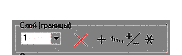
These are editing buttons,
affecting the whole layer.
|
|
Erase all data for all profiles
in this layer |
|
|
Add value from the Value
field to all data values in this layer |
|
|
Fill all profiles in the
layer with value from the Value field, overwriting old data |
|
|
Revert data sign for all
profiles in the layer |
|
|
Multiply data in all profiles
in the layer to value from the Value field |


Select needed profile from
drop-down menu. On the right you can see a group of buttons.

These buttons are for editing
data in selected profile.
|
|
Erase all data for all profiles in this layer |
|
|
Copy data from current profile to all profiles with smaller ordinal numbers |
|
|
Copy data from current
profile to all profiles with larger ordinal numbers |
|
|
Add value from the Value
field to all data values in this profile |
|
|
Fill current profile with
value from the Value field, overwriting old data |
|
|
Revert data sign for current
profile |
|
|
Multiply data in current
profile to value from the Value field |
|
|
Copy data from current
profile to clipboard |
|
|
Paste data from clipboard to
current profile |


Also, you can manually edit
values for each data point. Several shortcuts are provided:
- Put a number in any cell in the table and press
Tab key. Current profile will be filled with that value.
- Put two numbers in any two cells and press Tab
key. The range between the two cells will be filled with interpolated
data, cells before the first will be filled with first value, and after
the second – with the second value.
|
|
Switch between text mode and
graphic mode editing. In graphic mode, data will be plotted and dragging the
point with the mouse can change value for any point. Layer, profile, pint
number and value are indicated in the status line. |
|
|
Calls the Array Operations window. You can add, subtract and copy
arrays. If size of the arrays differ, the size of the resulting array will be
smallest of the two. Adding arrays: select from the drop-down list array for storing
results and arrays which should be added, then click Subtracting arrays: select from the drop-down list array for storing
results and arrays participating in the operation, then click Copying arrays is similar to adding, only you don’t need to select the
second array. |
|
|
Calls the Layer
Break window. The selected layer will be broken onto two sublayers. The upper
sub-layer will be assigned minimal value from all the blocks making up the
layer and the bottom sub-layer will receive maximal. Then, a new boundary
position will be calculated so that summated magnetic moment from both blocks
equaled that from old block. |


Working with well logs
The well log is represented as
set of blocks, each characterized with bottom boundary and magnetic
susceptibility. The upper boundary of the first block coincides with surface
and the upper boundaries of other blocks coincide with bottom boundary of upper
block.. Blocks beyond bottom boundary of the model are ignored.
To create a well log, activate
Logs tab of the main window. Number and user-defined name of the log will be
shown in Log field. Click Add to create new log. Edit the name of the log. This
name will be shown on all plots. Select the symbol for the log to show on maps
from the Designations drop-down. Input the coordinates of the well.
Blocks are created when you
click button Add near the Block drop-down list. For each, the following
parameters must be set: coordinate of bottom boundary, absolute depth marker
(bottom boundary of the well, relative to daylight surface, coordinates below
are negative numbers) and magnetic susceptibility.
Working with images
Activate Images tab of the
main window to access graphic-related functions. You can make images of the sections, surfaces, plot various
parameters, combine several images into one and export them in bmp format. Use
Settings->Basic Settings->Graphic and various windows, accessed from
Windows menu.
The type of image can be
selected from drop-down list on the left. When the type selected, window
Graphics: Basic will show parameters related to this type of image. Types of
images are:
- Surfaces – draws the selected slice of data in
color, with or without isolines. You can select the array that needs to be
drawn in Arrays drop-down list in window Graphics: Basic. Every array can
have several layers. However, only one layer can be drawn at a time, so
you will need to select the layer in the Layer drop-down list in window
Graphics: Basic. Another option is to draw or not to draw isolines.
- Select section – here you can select the
direction of the section for imaging and plotting. You will see the map of
the research area with the surface of the data you selected earlier.
Clicking the left mouse button on the map adds the point to the broken
line. The section will be built along this line. Window Graphics: Tools
has several convenient buttons:
|
X |
Erase all
points in the section |
|
|
Erase last
point |
|
|
Make section
along the first profile |
|
|
Make section
through the first point of all profiles |
|
|
Move the
line in the direction of the arrows at he distance equal to the number in the
field. |


- Sections – draw a section along the selected
broken line. Different task use different arrays of boundary coordinates
and medium properties, so you must select arrays that related to current
task. For that, use drop-down lists Depths and Properties in Graphics:
Basic window. Another option is to draw or not to draw isolines. You can
also select the variant of drawing:
- Isolines – draw isolines
- Layered – each layer will be divided onto two
sub-layers, assuming that susceptibilities are constant within those
sub-layers. The upper sub-layer will be assigned minimal value from all
the blocks making up the layer and the bottom sub-layer will receive
maximal. Then, a new boundary position will be calculated so that
summated magnetic moment from both blocks equaled that from old block,
that is:
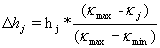 ;
where Dhj is the thickness
of the upper sub-layer, hj – thickness of j-block before
dividing, kj – susceptibility of j block before dividing and kmax,
kmin – maximal and minimal susceptibility in the layer. Thus,
“magnetic mass” of two blocks added up will be equal to “magnetic mass”
of the block before dividing.
;
where Dhj is the thickness
of the upper sub-layer, hj – thickness of j-block before
dividing, kj – susceptibility of j block before dividing and kmax,
kmin – maximal and minimal susceptibility in the layer. Thus,
“magnetic mass” of two blocks added up will be equal to “magnetic mass”
of the block before dividing. - Blocks – this will show blocky structure of
model.
- Plots – plots various parameters along specified
section. Select arrays that you’d like to plot in the drop-down list. All
plots will have the same scale and limits will be selected according to
the maximal value for all selected arrays. That’s why, for example,
plotting simultaneously magnetic susceptibility and boundary coordinates
isn’t recommended.
- Select section (3D). For building 3D image, you
first select two secant planes going through the model and dissecting it
onto four rectangular blocks. Click left mouse button to set the
intersection axis for these planes. If you’d like not to show one of the
four blocks, click right mouse button on one of the rectangles.
- Perspective (3D) – builds the 3D image according
to selected under “Select section (3D)” parameters. Drag the mouse holding
left mouse button to rotate the camera, drag the mouse holding right mouse
button to zoom in and out. Settings are similar to that used in section
imaging.
- Stretch model – scale model along Z-axis
proportionally to the parameter
- Stretch field – you can draw a magnetic or
gravitational field above the model surface. Set this parameter at 0 to
draw an image of field on the surface. Set it at negative value to
disable drawing the field.
- Blocks apart – visually move the blocks away
from each other at the specified distance (meters).
- Move field up – the height for the drawing of
the field from the daylight surface.
- Texture quality – use this to adjust the quality
of the image. Higher value yields better quality, but requires more
resources. It isn’t recommended to exceed 150.
- Marks – set the number of tick marks along the
coordinate axes.
The Colors window serves for
setting up palette. Click the corresponding buttons for setting the colors of
isolines, dividers and fonts. Choose the preset palette from the drop-down
list. The default is the first one in alphabetic order.
You can switch between
“global” and “local” palettes. The local palette assigns colors from minimum to
maximum value of plotted parameter. If we change the level of data, the range
will automatically change. It is better for making up the details.
The global palette will seek
the maximum and minimum values in the entire data cube, so the palette will not
be changed from one slice to another.
Click button > to edit the
palette. This will call the Edit palette window. You can choose colors, save
and load the palettes and work with background textures.
Double-click the element of
the palette to change its color and texture.
Point at the element of the
palette, press and hold left mouse button, drag the mouse to some other element
of the palette and release mouse button. You will be prompted to select the
color for the first element, then for the second and after that the range
between them will be automatically filled up with a smooth gradation of colors.
When you are satisfied with
your palette choices, click Save as… button and save your palette. Click Apply
button to see how you picture look with new palette. Clicking Cancel button
will cancel the changes and close the Edit palette window. Do not forget to
Apply your changes before closing the window, or your changes will be lost.
The Graphics: Basic window
will be showing the parameters relevant to drawing the field and horizontal
section of the model.
- Field – the name of the array you are currently
viewing
- Relief – the name of the array, which will be
visualized as pseudo-relief above the surface of the model
- Layer – the number of the layer whose upper
boundary will make up horizontal slice; or “Daylight” for the daylight
surface.
- Shift – the value of the offset for vertical
moving of the horizontal slice. Negative – downward.
- Marks – set the number of tick marks along the
coordinate axes.
You can also select a method
for visualizing – blocks, isolines or layers.
Note that after changing image
parameters, you should click Refresh button in the main window, or the image
could remain the same.
When you are satisfied with
image, you’ll probably want to save it for later viewing, embedding in your
documents or printing. You can either save the image you currently viewing as
Windows Bitmap file, or you can combine several images into one and the save
it.
To combine images, use
Graphics: Tools window. Click the Remember Image button in this window. Every
image will be assigned a number. Select New in the drop-down list to add a new
image to the set. After you have acquired a desired number of images, save them
by clicking Auto button of the Graphics: Tools window.
To save a single image, use
Save to file button of the main window. You will be prompted for filename.
Printing
Printing currently is somewhat
delicate matter. For professional printing, we recommend exporting images to
specialized packages. You can, however, print a draft for a quick analysis
using our package. Click the Print button in the main window. This will call
the Print window. You can select printer, adjust orientation justification and
zoom and embed a caption in the image. Finally, print the picture clicking the
Print button.
Configuration
You can customize many
aspects. Use Settings->Basic settings command from the main menu to access
customization window.
- Interface – customize the user interface
- Import check – automatically check the
correctness of the data in imported grid file.
- Open last file – when started, automatically
open last worked file
- “Process complete” message – show message window
about completion of the computation. Note that while that window is
shown, the next job will not be run.
- Autosave after compute – automatically save the
job after successful computation.
- Precision – number of signs after decimal point.
- Meters – precision for length-related data
- Other – all other, including densities
- Lateral units – units for labeling X and Y axes
in all the images
- Height units – the same for Y axis
- Graphics – parameters for visualizing
- Interpolation – select methods for the
interpolation of data for visualizing surfaces, sections and plots.
- Smoothing – use smooth color transits
- Line width – width, in pixels, of the lines for
drawing plots
- Max picture size – the size of preallocated
picture buffer. Restart the program after changing these.
- Depth shadowing – this should be
self-explaining…
- File types – register Windows file extensions
association
- Data path – select the directory, where shared
data for the program are located.
- Array names – this affects the names of array in
all drop-down lists in the program. You can change the name of the array,
types of tasks and position of the array in the list. Click the line with
the array name to see the description of the array.
Do not forget to Apply your
changes before closing the window.
Importing data from grid file
The format of the grid file is
simple. It is a plain ASCII text file containing columns of numbers. First and
second columns are considered X and Y coordinates of data points, all other are
values of data. Use command File->Import and browse for the file. Data will
be checked for consistency (if this option isn’t turned off in the settings).
If all goes well, you will see window with 3D preview of data at the lower
right. The preview can be rotated with the mouse. Select the columns of data
and arrays for storing the data. The number of profiles and points will be
computed automatically (that’s why it is important to have X and Y coordinates
in the file). Click Create arrays. This will create arrays of needed size, but
will not store the data. You must click Apply to store imported data in the
arrays.
Note that data points must be
uniformly distributed along the rectangular grid. Non-numeric symbols are not
allowed in the file. A newline must be the last symbol in the file.
Troubleshooting
ü
Program does not start. Possible reasons:
o Read-only attribute set on the files.
Remove it.
o Too large max size of the picture
specified in settings. Remove *.ini file in the program directory to reset all
settings to defaults.
o Some files are missing or corrupted.
Reinstall the program.
o Close all non-needed applications.
Reboot Windows.
ü
Other errors do not exist, and if you’ll find them, do not believe your
eyes.